





How can I get more tracing paper and coloring pages for my Art Book template library?
You can expand your CyberLink YouPaint Art Book template library by downloading additional tracing paper and coloring pages from the free DirectorZone web service.
To download Art Book templates from DirectorZone, do this:
- Click on
 to enter the Art Book library, and then select the Templates tab.
- Click on the
 button in the templates tray. If this button is not displayed click the button to scroll all the way left to display it.
- The DirectorZone web site loads in your default web browser. You must first sign in to DirectorZone to download templates. If you don't have an account, click the Sign up link at the top of the page to get one for free.
- Select the YouPaint tab to display all the available tracing paper and coloring pages you can download.
- Find a template you want to download, and then click the Download link underneath the template.
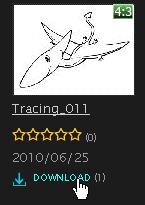
- Click Download again.
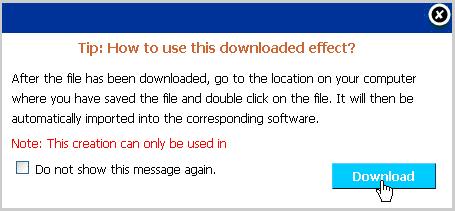
- Save the template to your computer. Find the location on your computer where you saved the template .dzp file, and then double-click on it to install it in your library.
Note: if you are downloading the template in Microsoft Internet Explorer, select Allow if you receive the Internet Explorer Security dialog during the installation process. - A message displays indicating that the template was successfully installed and imported into your CyberLink YouPaint Art Book library.
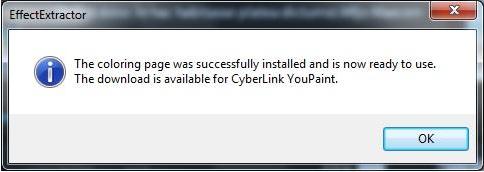
- Click on OK to close the message, and go into the Art Book library to use the downloaded template.
Note: if you clicked the Save button instead of Open in step 7, find the location on your computer where you saved the template .dzp file, and then double-click on it to install the template in your library.


