





What is Mini view for CyberLink PowerDVD 18 or later versions?
To use the Mini view of PowerDVD, please do this.
- Start video playback.
- Drag the playback window, and resize your playback window to a smaller size.
The Mini view will be enabled after you've resized the playback window to a smaller size.
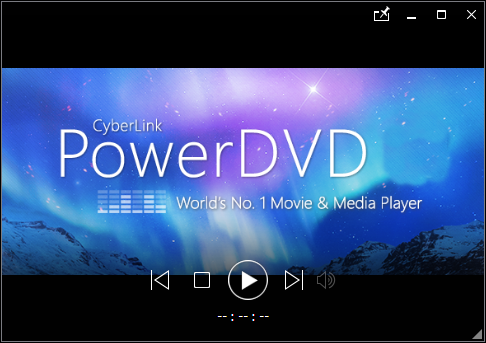
Mini view will hide certain playback options/features (e.g. TrueTheater panel, secondary subtitle, scene selector, etc.) to make room for the small playback screen. If you are not able to find certain playback options/features in Mini view, you are advised to enlarge the playback window to full view to control the playback.


