





How do I update or upgrade my perpetual products?
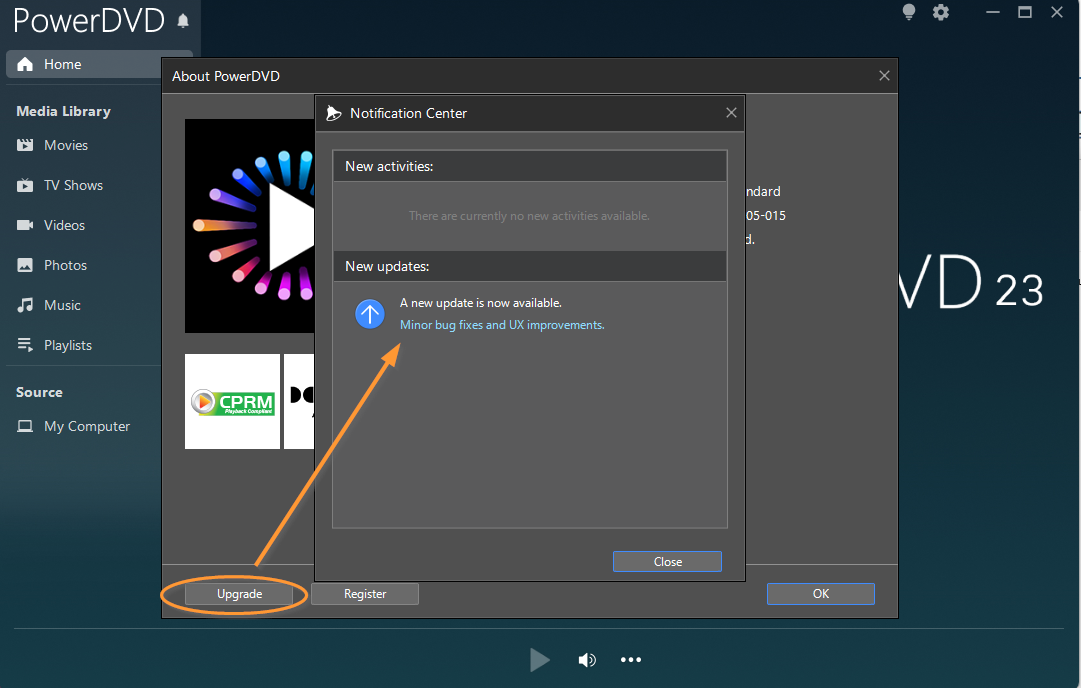
We offer updates within the current version number.
To upgrade to a new version, you need to purchase either the upgrade or full version. Upgrades usually apply to the two most recent versions. For specific upgrade policies, please refer to the purchase plan on our online store.
You can update or upgrade your products in the following ways:
- In the product
1. Click on the product logo in the upper left/right corner to open the “About” window.
2. Click on “Upgrade” to check for any available updates or upgrades.
3. Follow the on-screen instructions to update or upgrade your product.
- On the website
- Visit the Software Update page to download the latest build for your current version number.
- Visit CyberLink Online Store to purchase the upgrade to the latest version number.
How do I install an upgrade version?
During the installation, the upgrade version automatically checks if any one of the two most recent versions are installed on your computer.
- If found, it continues installing the upgrade version. After installation, enter the product key of your upgrade version to activate your product.
- If no previous version is found, you will be prompted to enter the product key of the previous version to proceed with the upgrade installation. After the installations is complete, follow the instructions to enter the product key for the upgrade version to activate your product.


