





How do I trim my recorded U Webinar online?
To trim your recorded U Webinar online, please visit https://u.cyberlink.com/user/profile and then browse to My Webinars > Recorded webpage.
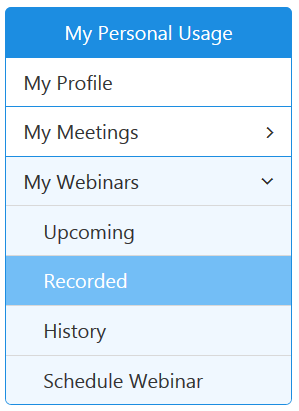
On the webpage, find the webinar you are going to trim and then click the  button to enter video trim page.

On the page, you can preview the webinar and then click the Set Start button to set the starting point of the webinar. Click the Set Stop button to set the ending point of the webinar. You can also use the yellow marks to set the starting and ending points directly. The video between the two yellow marks will be kept after you click the Save button to complete the video trim. The video on the outside of the two yellow marks will be deleted permanently.

If you would like to keep the original video, please enable the option "Keep the original video". The video on the outside of the two yellow marks will be not be deleted and will be available when you enter the trim page the next time. Viewers will only see the trimmed video even if you kept the original video.


