





How do I use the Text + Outline tool in CyberLink PhotoDirector 365?
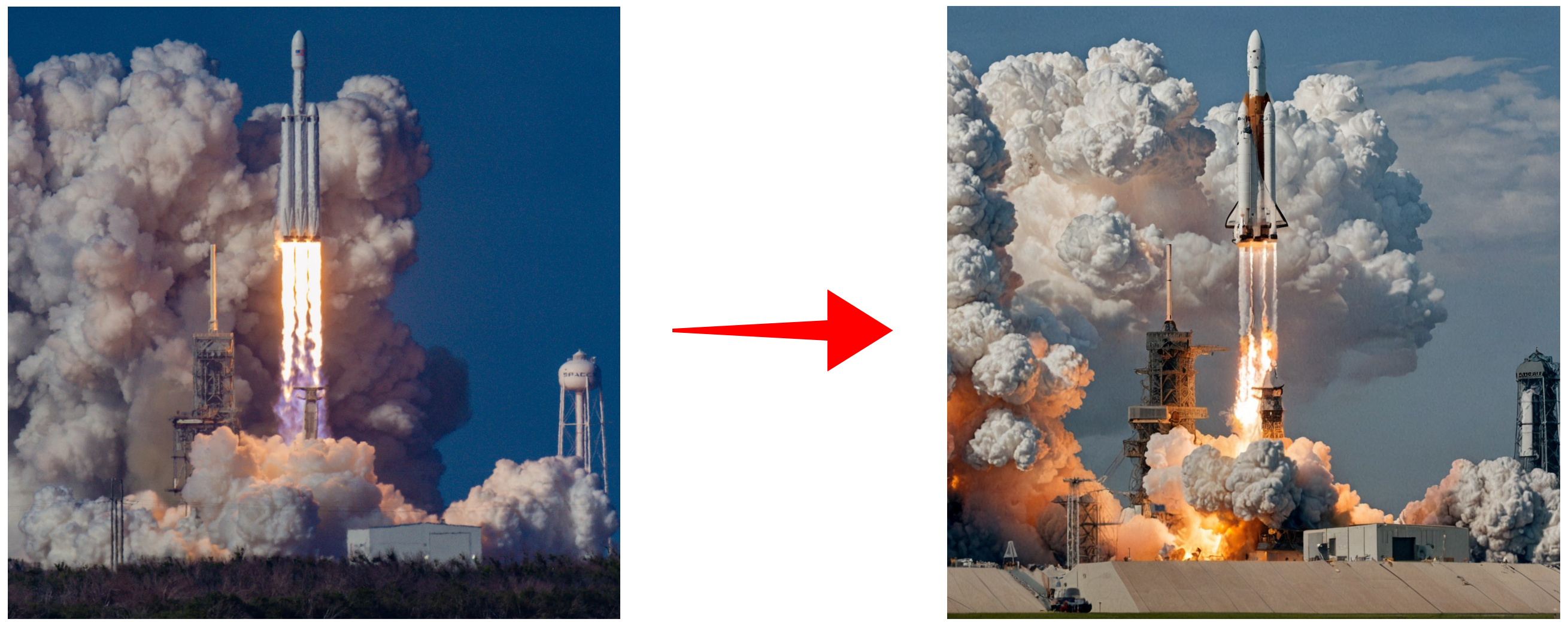
CyberLink PhotoDirector 365 (released after Sept. 2024) supports the Text + Outline tool with AI technology. It allows you to maintain the original outline/structure of an image, but generate a new image with the text prompt you describe in the same outline.
The tool helps you change the atmosphere or look of an existing image quickly without transforming the original outline/structure of the image.
Follow these steps to use the Text + Outline tool in a photo:
- Select GenAI Studio mode on the launcher.
- Select the Text + Outline tool.
- Import and crop a photo that you would like to maintain the overall outline of, but change its atmosphere/look/decoration of the image.
- Adjust the Outline similarity (Low, Medium, High) to set how the outline the generated image will be produced.
- Describe what image you would like to generate specifically in the text prompt box if required.
- Select an overall image style on the style panel for the generation if required.
- Click Generate* to generate the images.
The sample of the generation on a rocket launching photo with the text prompt: "space shuttle launching"; Outline similarity: High; Style: None:
- When you are done, click on the Download and Use button to save the generated photo.
To learn more about the features in PhotoDirector, please refer to the online help of the product.
Note:
* Text + Outline is a credit-based feature. It consumes credits per image generation. If your current credits are insufficient, you can click the Get Credits button in the feature window to purchase additional credits.
If you want more information about credits, please check Credit FAQ.


