How do I manually set the projection format of my 360° video in CyberLink PowerDVD 16?
CyberLink PowerDVD 16 currently supports the playback of 360° videos that are in the equirectangular projection format.
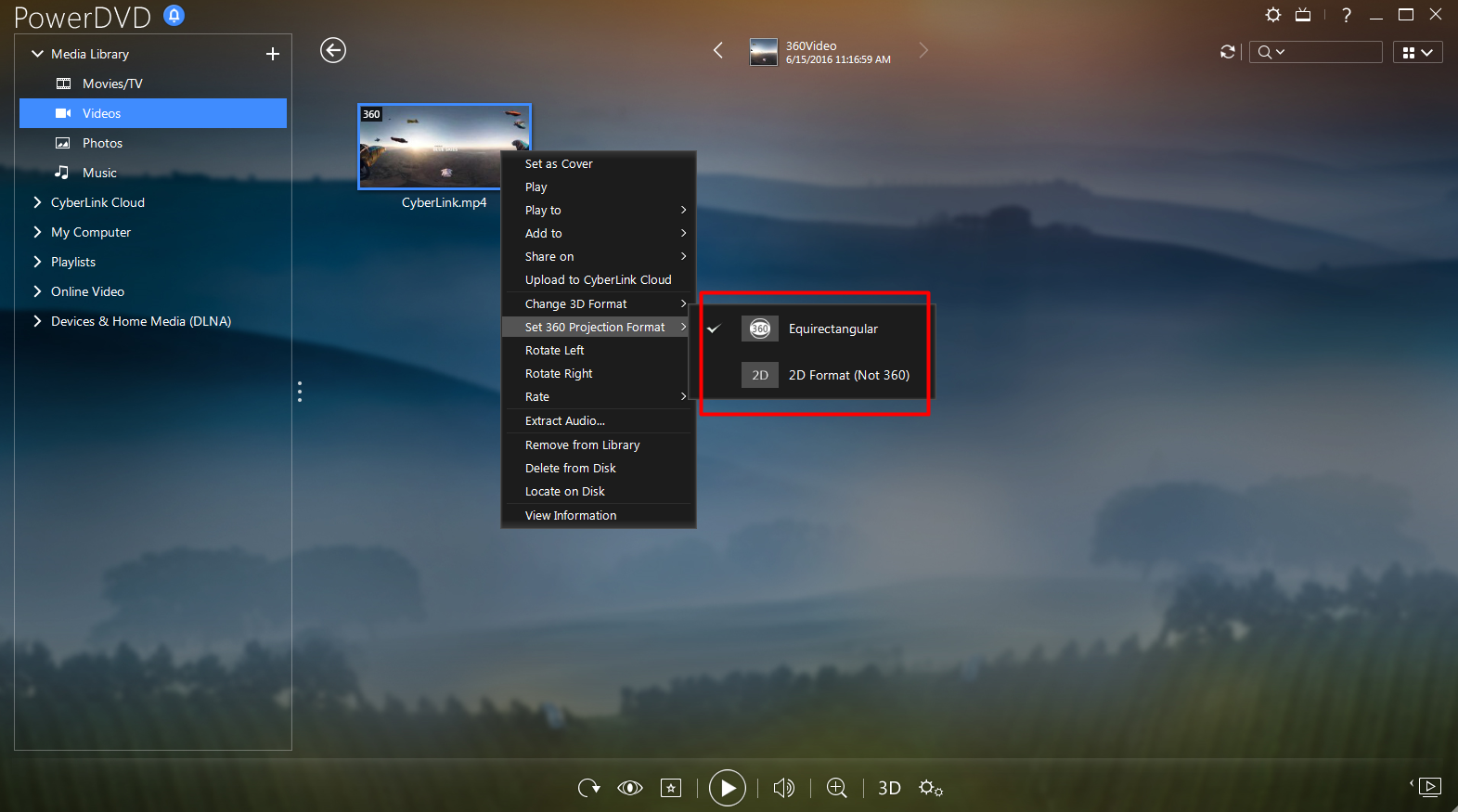
After importing 360° video files into the media library, CyberLink PowerDVD will detect the 360° video format automatically. If you want to manually set the format, do this:
- Right-click on the 360° video file in the PowerDVD media library.
- Select Set 360 Projection Format.
- Change the 360 format by selecting Equirectangular or 2D Format (Not 360).
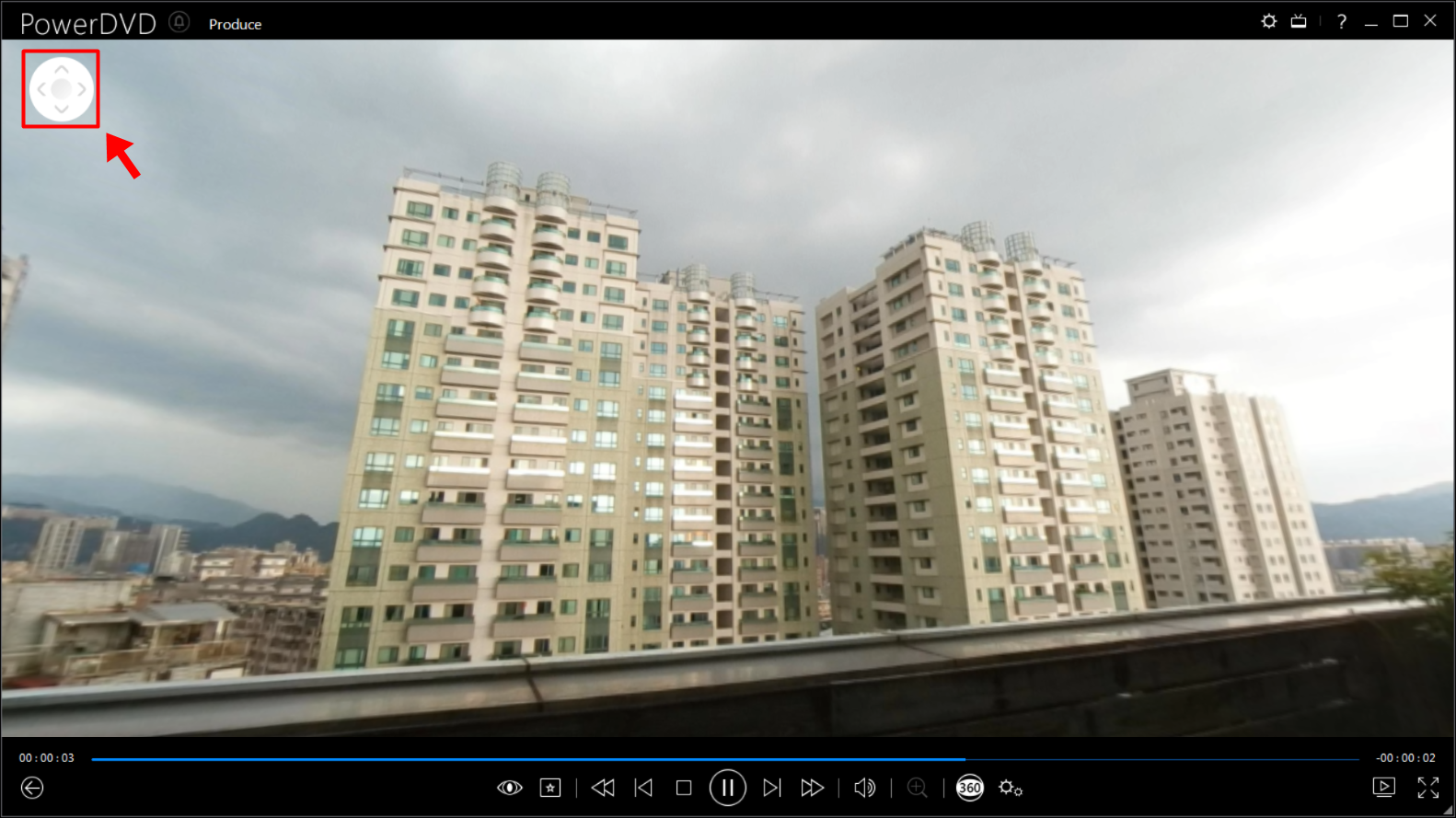
By setting it in the equirectangular projection format, you can then pan and rotate the 360° video's perspective to watch it from different angles during the playback using the  control, or by clicking and dragging your mouse on the playback screen.