





How do I install, activate, and pair the PowerDVD Remote app with CyberLink PowerDVD?
PowerDVD Remote instantly turns your iOS or Android device into a remote control, wireless mouse pad and keyboard for PowerDVD on your PC.
Install PowerDVD Remote on your mobile device
-
Launch iOS App Store or Android Google Play Store App on your device.
-
Download and install the app that pairs with your PowerDVD version.
|
PowerDVD Remote Version
|
Pair with PowerDVD
|
|---|---|
|
PowerDVD Remote FREE |
|

Pair PowerDVD Remote with PowerDVD
Before you can use PowerDVD Remote to control PowerDVD on your PC, you must first:
-
Make sure PowerDVD Remote (on your mobile device) and CyberLink PowerDVD (on your PC) are connected to the same Wi-Fi (wireless) network.
-
Launch PowerDVD on your PC.
-
Select PowerDVD Remote under the Devices tab.
-
Enable "Allow PowerDVD Remote to connect and control this computer" option.
Note: PowerDVD 11, 12, 13 users can skip this step. -
Find the 4-digit passcode at the bottom of the window.
-
Launch PowerDVD Remote on your mobile device and then click the name of your PC in the server list that has PowerDVD installed.
Note: If you cannot find your PC in the server list, double check that you have followed the step1 and step3. -
Enter the 4-digit passcode to pair your mobile device and PC. You can now use PowerDVD Remote to control PowerDVD on your PC.
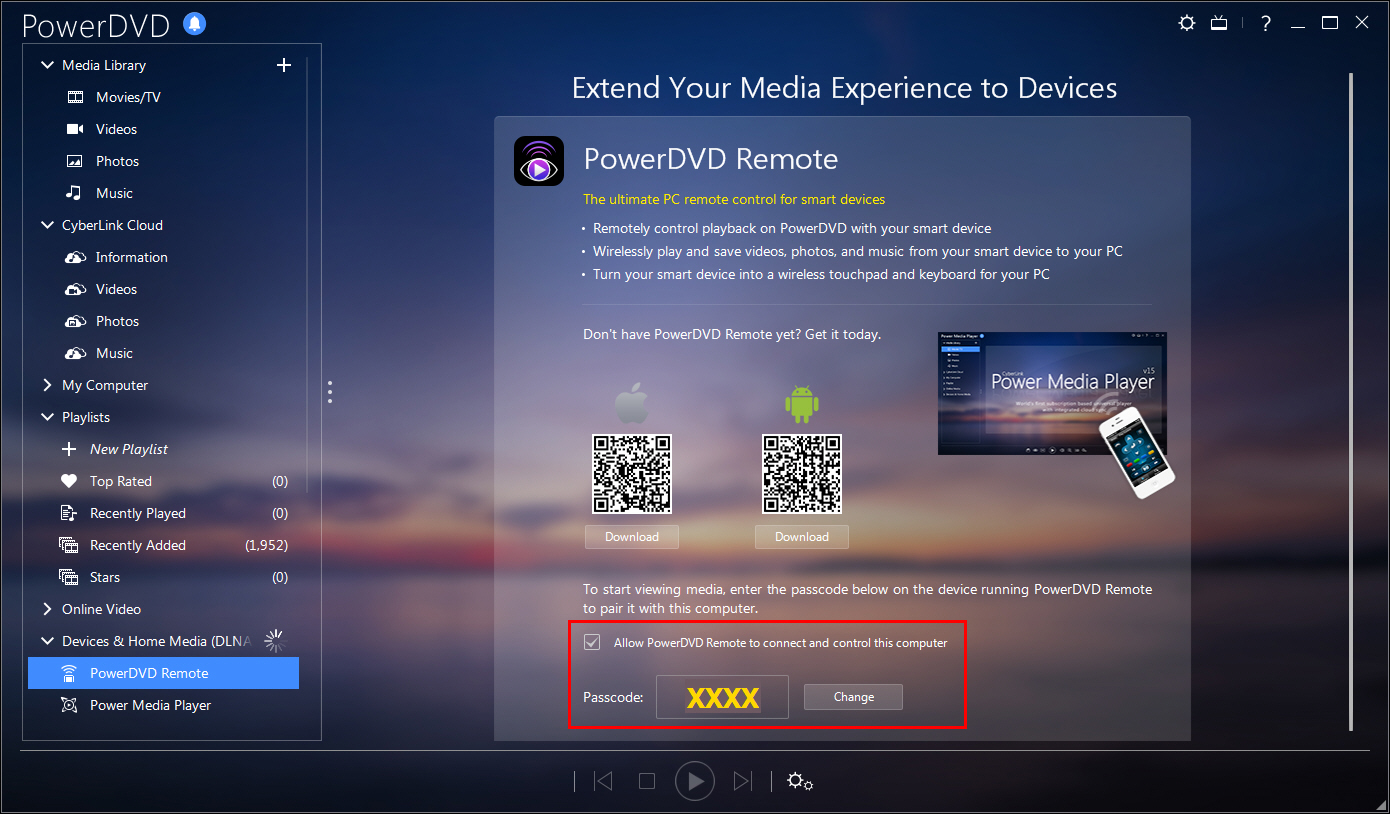
Note: The user interface in the snapshots might differ slightly among PowerDVD versions.
Note: Make sure that multicast is enabled in the Wi-Fi router settings. If you have problem regarding the multicast settings, please contact your network service provider.


