





What can I do if my PowerDirector Mobile crashes?
When using video editors, interactions between the app and your device can sometimes cause crashes during editing. Before contacting support, here are some troubleshooting steps you can try, please follow the checklist:
- Check device compatibility: Ensure your device meets the minimum requirements. Some features may not work on older or low-end devices. Check the recommended system requirements below:
- Which mobile device system on chips (SoC) support Ultra HD(4K) video editing and producing in CyberLink PowerDirector Mobile Android?
- Which mobile device system on chips (SoC) support video overlay editing and producing in CyberLink PowerDirector Mobile Android?
- Hardware requirements for CyberLink PowerDirector iOS.
- CyberLink PowerDirector iOS hardware requirements for 4K video editing and producing.
*These statements are for reference only and may differ based on real-world conditions.
- Close all background apps: Close all unnecessary apps running in the background to free up memory and processing power.
- Clear device cache: Go to your device's app management settings page, find PowerDirector Mobile, and clear the cache to free up memory and processing power.
- Check for app updates: Check Google Play or App Store to ensure you have the latest version of the app to benefit from bug fixes and performance improvements.
- Free up storage space: Make sure your device has enough free space for the video project and app to operate smoothly.
- Lowering project complexity: Large or complex projects can lead to crashes, so consider breaking them into smaller segments or reducing the complexity.
- How to break a large project into smaller sections?
- Check if your PowerDirector Mobile supports the "Pin" system. Use version 12.6.0 (Android)/13.1.0 (iOS) or later.
- Pin all overlay clips to corresponding master track clips.
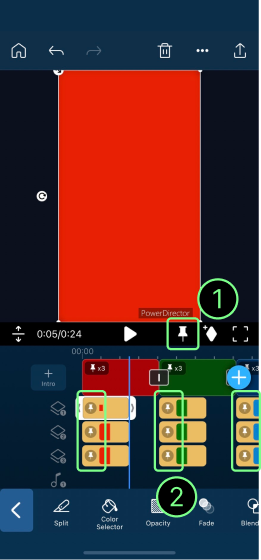
- Go back to the index, then tap the 「…」icon next to the project tile.
- Choose "Duplicate".
- Open the duplicated project, decide which sections you'd like to keep, and delete all the other clips.
- To prevent the clips from misplacement, delete the overlay clips first, then the master track clips.
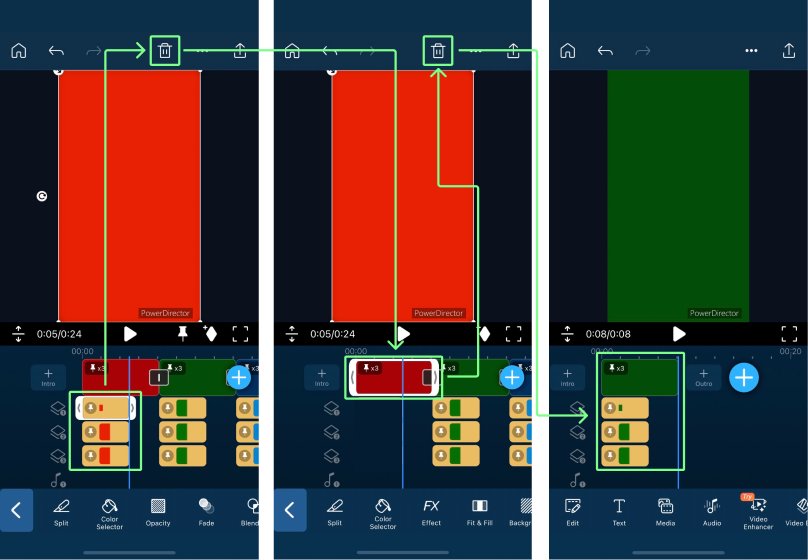
- Repeat the process until the chosen section is left.
- Export the section. If it still fails, break the project up more.
- Repeat steps A to G as needed until all the sections are exported.
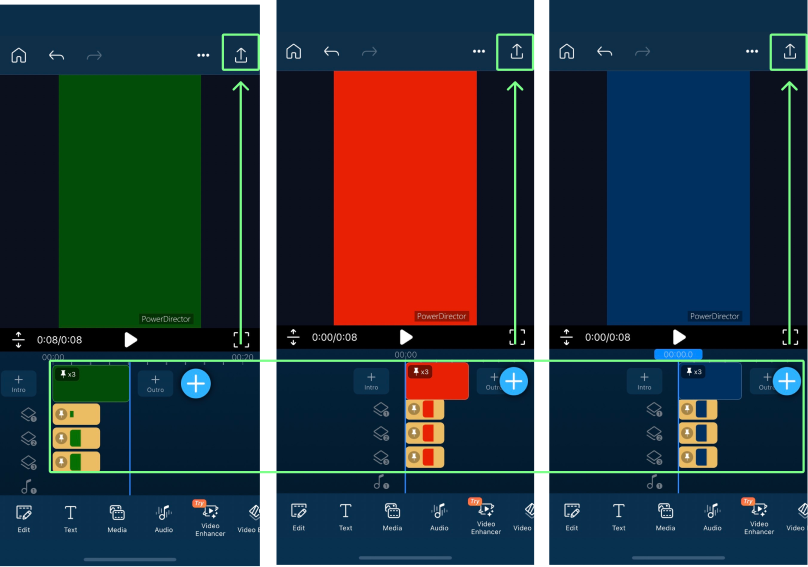
- Import all the sections into a new project, and then export the project to get the full video.
- For an optimal outcome, we recommend deleting the master video with the most overlay objects, longest duration, highest resolution, fps, or bit-rate first.
- How to break a large project into smaller sections?
- Reinstall the app: If the issue persists, reinstall PowerDirector Mobile. We strongly advise backing up your projects before uninstalling the app. Instructions for backing up projects can be found below, after the installation, import the project again. In Android, download the project from Google Drive. For iOS, use the "Import" button on the index, find the project, and then tap to import.
- Report the issue and contact the support team: To maximize the chance of issue solving, provide as many details about the crash as you can, i.e. steps leading to it, and any error messages to the support team via "Send Feedback" in the settings or the "Contact Support" on the CyberLink website.


