





What can I do if I cannot import a photo into CyberLink PhotoDirector?
Symptom
You cannot import photos into CyberLink PhotoDirector or the photo is not recognized by CyberLink PhotoDirector as expected.
Solution
There are many reasons that can cause this issue. Please try one or more of the following:
- Ensure your camera and photo file format are supported by CyberLink PhotoDirector.
Please check the supported formats and cameras here.
- Ensure the images and folder property are not "Read-only"
1. Right click on the photo or folder that you would like to import.
2. Select Property.
3. Deselect the the Read-Only option.
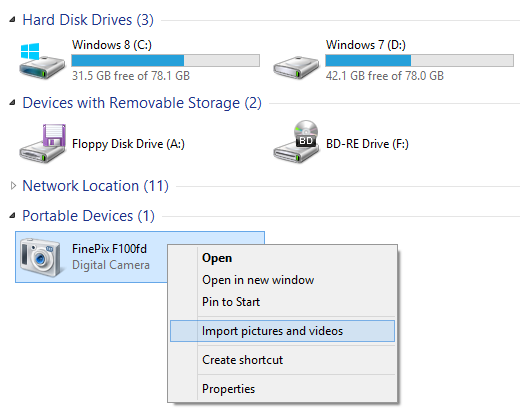
- Import photo from Windows Portable Devices (WPD).
1. Connect your device via its cable to your computer..
2. Ensure that your camera displays in "Portable Devices" under Computer directory.
3. Right click and select Import Pictures and Videos option.
4. Select Review, organize and group items to import option.
5. "Import Pictures and Videos" dialog pops up and makes sure all the photos in the camera are shown correctly without any problems.
6. Click the Import button and ensure that all the selected photos are imported.
7. After the import is complete, import these photos into CyberLink PhotoDirector.
8. If your camera does not display under WPD mode, please contact Microsoft to verify that your device is supported by Windows Portable Devices.


