How do I use NVIDIA Graphics to play HDR (High Dynamic Range) video files with HDR effect in CyberLink PowerDVD 18?
CyberLink PowerDVD 18 currently supports the playback of HDR (High Dynamic Range) video on HDR display devices via the following compatible NVIDIA graphics processors:
NVIDIA Geforce GTX 950/960, 1000 series (For HEVC HDR 10)
NVIDIA Geforce GTX 1080 Ti, GTX 1050, GTX 1050 Ti, GT 1030 (For VP9 (YouTube) and HEVC HDR 10).
To use your NVIDIA Graphics for HDR video playback, do this:
- Connect your HDR display device to the display output that's powered by your NVIDIA graphic processor.
- Enable the HDR display feature in Windows display settings with the following steps.
(1) Select the Start button, and then select Settings > System > Display .
(2) Turn on HDR and advanced color. - Launch PowerDVD, and then start the HDR video playback.
If your PC has multiple/dual graphic processors, to find out which graphics processor your display output uses, do this:
- Right click on your Windows desktop, and then select NVIDIA Control Panel.
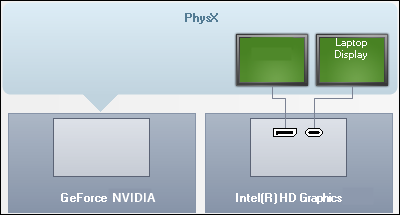
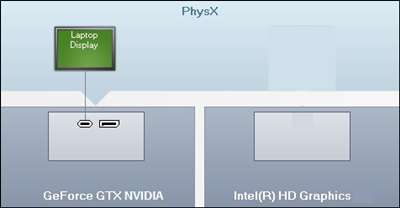
- Click Set PhysX Configuration to see which graphics processor is powering your display.
If your display device is powered by NVIDIA Graphics, the NVIDIA configuration will be shown as below:
If your PC has hardware restrictions, then the display output will be powered by Intel Graphics exclusively as below shown. You are advised to follow the related FAQ steps to use Intel Graphics for HDR video playback.