





How do I modify the speed of my video and audio clips in the quick editing panel in CyberLink PowerDirector 365 ?
In the new version of PowerDirector 365 (released after July 2024), the Video/Audio Speed feature has been redesigned and moved to the "Speed" tab on the top of the quick editing panel.
To adjust the video or audio speed uniformly for the entire duration of a clip in the timeline, please do this:
- Select a video or audio clip in the timeline.
- Click Edit to open the quick editing panel.
- Switch to the Speed tab and drag the speed slider to modify video speed in the Uniform Speed tab. Or you can adjust the duration directly.
* If you want to adjust the video or audio speed uniformly for multiple clips at once, you can select multiple video (or audio) clips on the timeline, and then go to the Speed tab in the quick editing panel.
In Speed Presets, templates are displayed in a curved style, representing the speed settings of the entire video1 clip. You can set up different playback speeds for each portion of the video by adjusting the adjustment points.
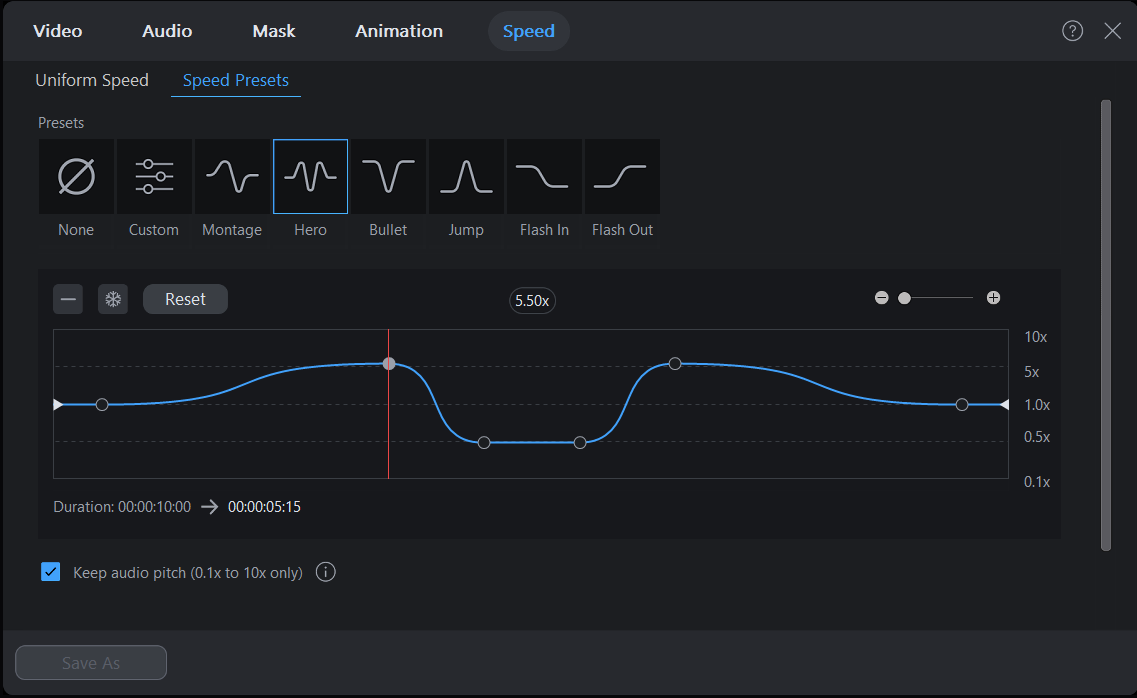
To change the speed of the video clips variably, please do this:
- Select a speed preset and the customization control controls panel will display below.
- Move the adjustment points upward to increase the speed and downward to decrease it.
- Click
 button to add more adjustment points or click the
  button to apply a freeze frame effect if required.
 - Click Save As to save it as a custom preset.
Note:
- Speed Presets are not currently available for audio clips and cannot be applied to multiple video clips at once.
- Making changes in "Speed Presets" will override the modification made in "Uniform Speed", and vice versa.


