





How do I manage the registered audience of a U Webinar?
To manage the registered audience of a U Webinar, please visit https://u.cyberlink.com/user/profile and then browse to My Webinars > Upcoming webpage.
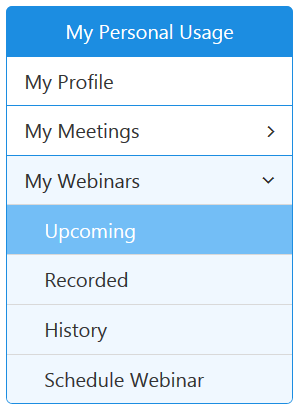
On the webpage, find the webinar you want to manage the registered audience for, and then click the  button to edit the webinar details.

In the webinar details webpage, click the tab "Registered" to view the registered audience members. The registered audience members can have the following statuses.
- Pending: The registered audience member is waiting for your approval for the registration. You can click the Approve or Reject button as required. The registrant will receive an e-mail once the registration is approved or rejected.
- Approved: The registered audience member has been approved to watch your webinar. You can still click the Reject button to restrict the registrant from watching your webinar.
- Rejected: The registrant has been rejected from watching your webinar. You can still click the Approve button to approve the registration again if you change your mind.
The drop down list beside the "Status" on the table header can help you to sort out the registrants with different statuses. You can find the registrants with the same status quickly by using this sorting tool.


