What can I do if others hear a hum noise or feedback during a U Meeting?
If there are meeting participants who tell you that they hear humming or get feedback coming from your audio, even when you are not speaking, please follow the steps below to disable the audio enhancements on your PC.
To disable the audio enhancement on a PC audio recording device, please follow the steps below.
- Right click mouse on the speaker icon of Windows system tray and then choose the option “Recording devices” to open Windows Sound settings.
- In the Windows Sound settings, double click on the recording device (microphone) that you are using and then click “Properties” button to open Microphone Properties settings.
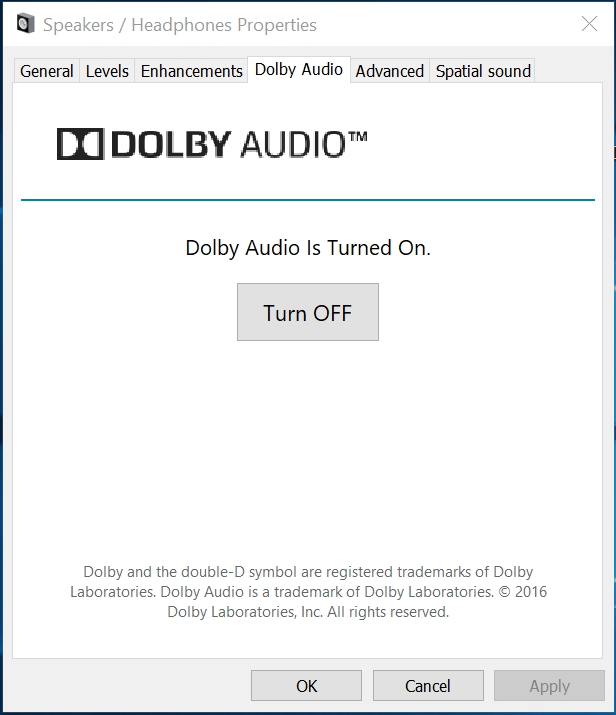
- In the Microphone Properties settings, enter the “Advanced” tab.
- In the Advanced setting, disable the option “Enable audio enhancements”.
If there is another 3rd party audio enhancement installed on the PC, the 3rd party audio enhancement needs to be turned off as well. To turn off the 3rd party audio enhancement, please follow the steps below.
- Right click mouse on the speaker icon of Windows system tray and then choose the option “Playback devices” to open Windows Sound settings.
- In the Windows Sound settings, double click on the playback device that you are using and then click “Properties” button to open Speaker Properties settings.
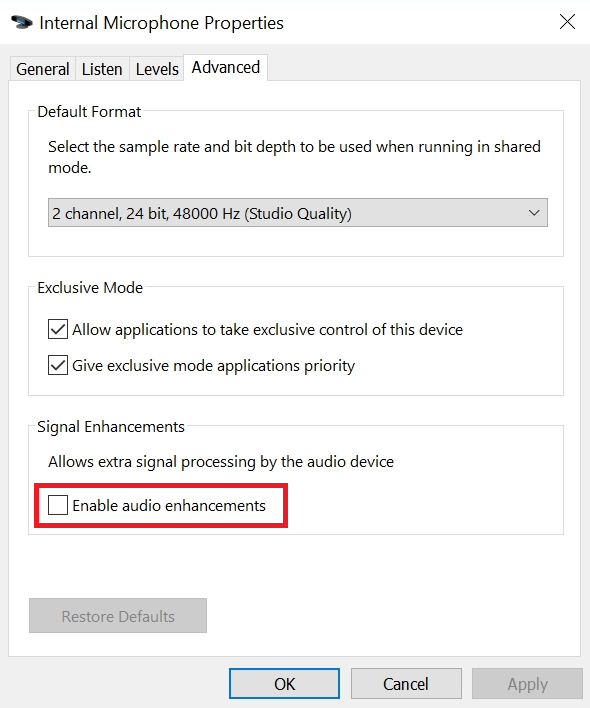
- In the Speaker Properties settings, enter the 3rd party audio enhancement tab.
- In the 3rd party audio enhancement setting, click the button “Turn OFF” to turn off the enhancement.