





How do I use the stamp tools?
Select the  tab to add stamps and image blooms to your memo.
- Select
 to add a static stamp to the memo. Select a stamp type from the thumbnail panel at the bottom of the window. Use your mouse’s scroll wheel, the arrow keys on your keyboard, or select the arrows to browse through all the available stamps. Use the blue slider to set the size of the stamp. To use the stamp, just select the location on the memo where you want to add it. Each time you select the memo pad, a new stamp is added.
 - Select
 to add image blooms to your memo. Image blooms place different image patterns on your memo in a flowing line using the image type you select. Select an image type from the thumbnail panel at the bottom of the window. Use your mouse’s scroll wheel, the arrow keys on your keyboard, or select the arrows to browse through all the available images. Use the blue slider to set the size of the images.
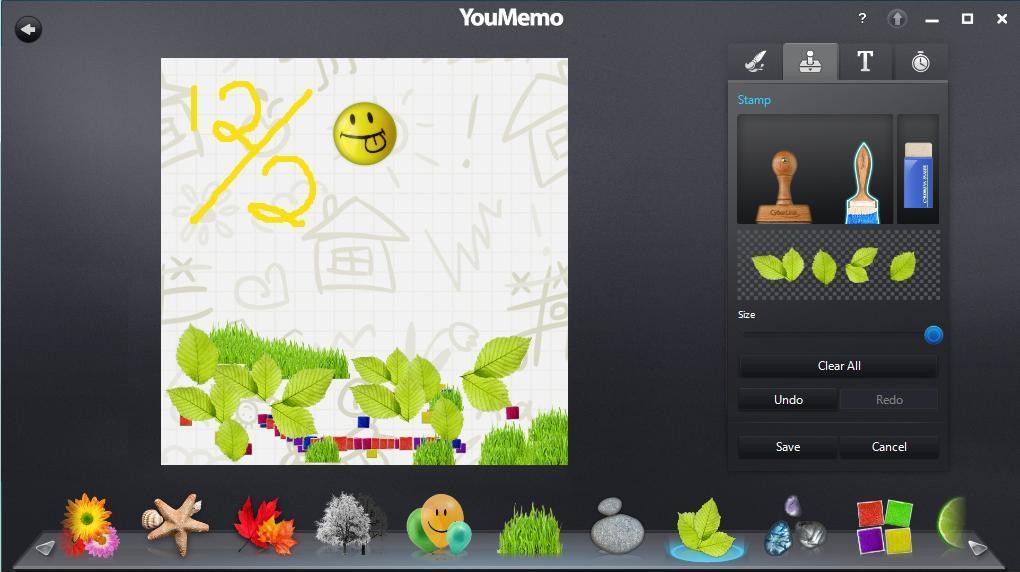
To add an image bloom to your memo, just select the place where you want it and then drag your finger/mouse across the memo pad to create a swirling chain-like effect. Select the Eraser tool to remove any unwanted portions of the added stamps, or the Save button to save the changes to your drawing on the memo pad and add it to the browse window. If required, select one of the other tabs to add additional content to your memo.


