





How do I use the color picker to select a custom color in CyberLink MakeupDirector 2?
CyberLink MakeupDirector 2 now provides a color picker feature to let you select a custom color for makeup tools from a full range of colors in the color spectrum, or select colors by entering the color code (e.g. RGB, HSB) directly.
To use the color picker to select your custom color, please do this:
- Select a makeup tool that needs to select a color to edit face.
- Click the Custom colors field to open the color picker.
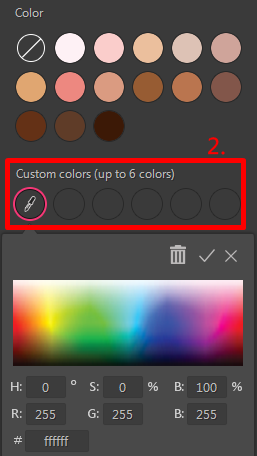
- Select a color on the color spectrum or enter the color code (e.g. RGB, HSB) to select a color.
- Click
 to save it as a custom color* for the makeup tool you are using.
If you want to replace a custom color that your previously selected with the color picker, do this:
- Select a custom color from the Custom colors slots you want to replace.
- Select a color on the color spectrum or enter a color code (e.g. RGB, HSB) to select a color.
- Click to save it as a custom color* for the makeup tool you are using.
Note:
* The maximum amounts of custom colors is 6. You can delete the custom color later if your available custom color fields reaches the maximum.


