





How do I use the Face Beautify feature in CyberLink YouCam 7?
In Capture mode, do this before you start the capture:
1. Select the  button underneath the webcam preview window
2. Select the Skin smoothener* option and then use the slider to set the amount of smoothing applied to your skin.
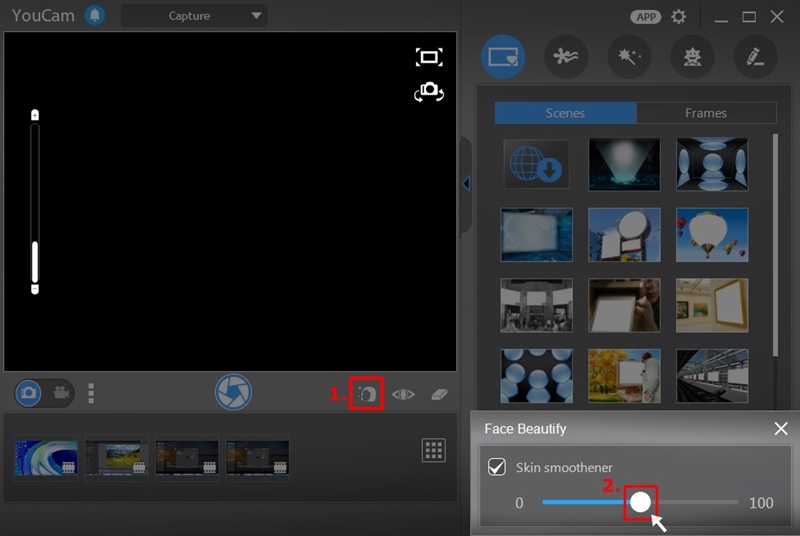
In post editing**, do this:
1. Right click on the photo you want to edit in the library window
2. Select Edit Photo to open edit window
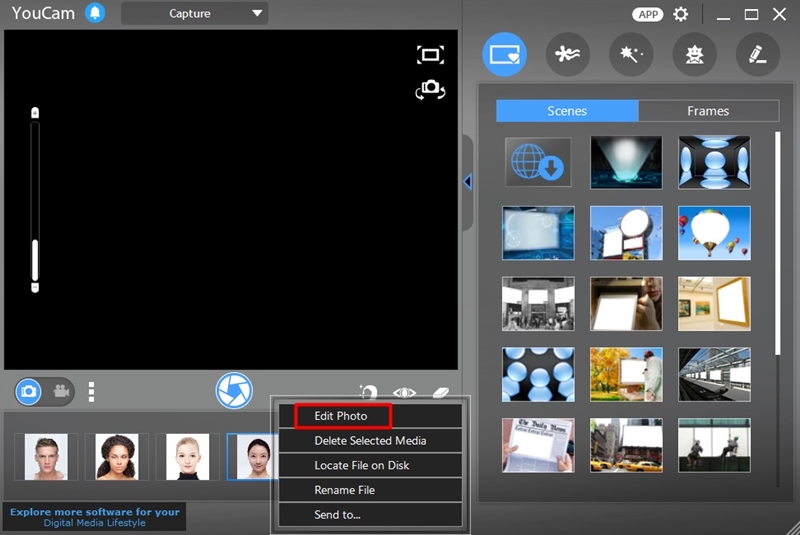
3. Select to use Face Beautify to touch up your webcam photos.
4. Select a tool in the Face Beautify window to edit the photo, and users can select  in editing preview window to display the tips about the current feature.
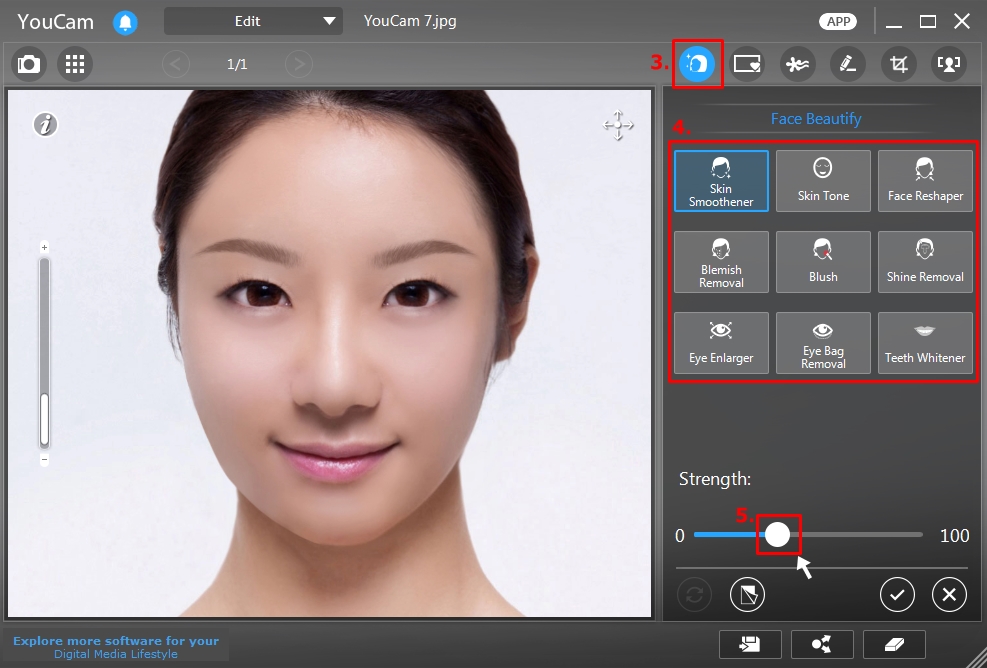
5. Use the Strength slider to set the amount of the effect applied or adjust selected area on removal features.
6. Select  to show the feature points of the face (eyes, nose, mouth, and chin) and adjust the positions if required.
7. Select and hold the  button to compare the changes to the original photo.
8. Select  to apply the changes
Note:
* Skin smoothener enhancement is applied by default in capture mode.
** Face Beautify post-editing is available on photo snapshot only.


