





How can I extract the audio track from a video file in CyberLink PowerDVD 15 or later versions?
You can extract the audio track of a video file and import it into the media library.* To extract audio from a video file, do this:
- Browse and find the video file in CyberLink PowerDVD, either in the Movie Library or via the My Computer tab.
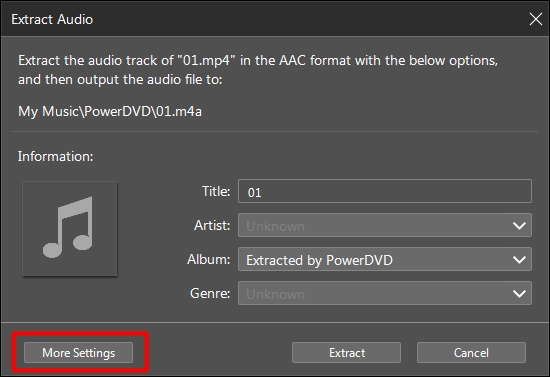
- Right-click on the video file you want to extract the audio from, and then select Extract Audio.
- Click the More Settings button to configure the extract audio settings as follows:
- Destination directory: set the location where you want to save the audio file.
- Format: select the preferred audio file format of the extracted audio.**
- Bitrate: set the quality of the extracted audio file.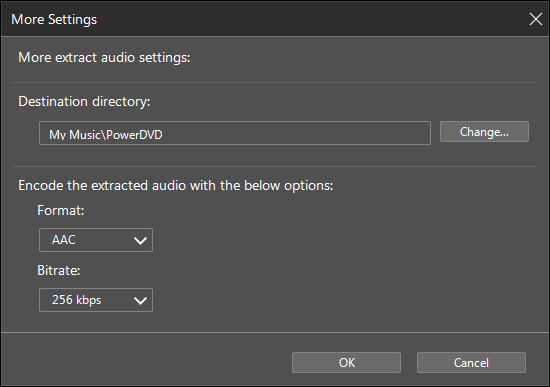
Click OK to close the More Settings dialog. - Click the Extract button to extract the audio and import it into the media library.
Note:
* you cannot extract audio from DVD or Blu-ray video discs.
** the extracted audio file will only have 2 channels, even if the original video file had more than 2 channels.
** if a video file has multiple language tracks, CyberLink PowerDVD extracts the first language track only.


