





How do I download my subscription software (eg: PowerDirector 365)?
[Purchased and Subscribed on CyberLink website]
You can access your purchase and download your subscription with your member account.
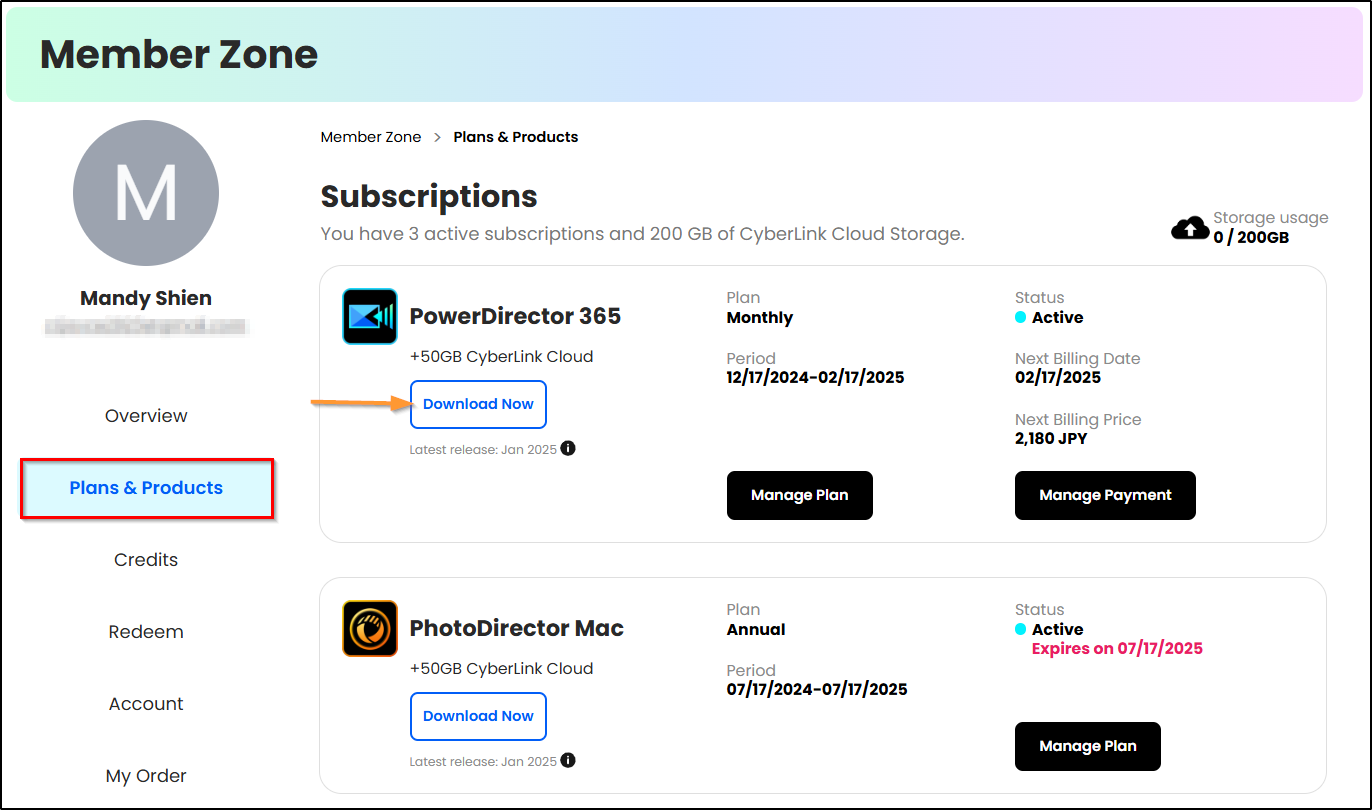
- Log in to CyberLink Member Zone.
- Go to Plans & Products and find your subscription.
- Click Download Now to download and install CyberLink Application Manager.
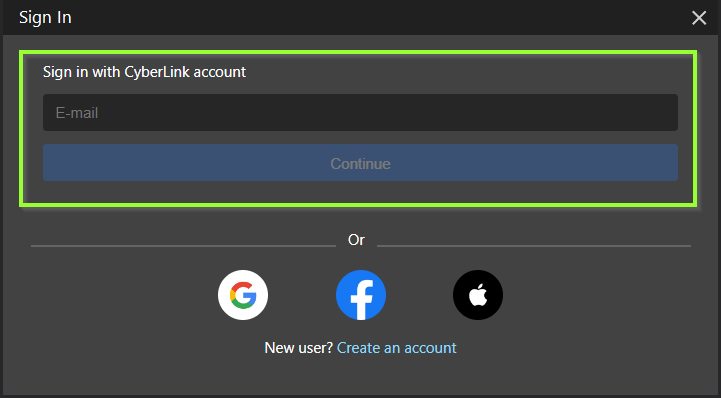
4. Open CyberLink Application Manager and then sign in with your CyberLink member account.

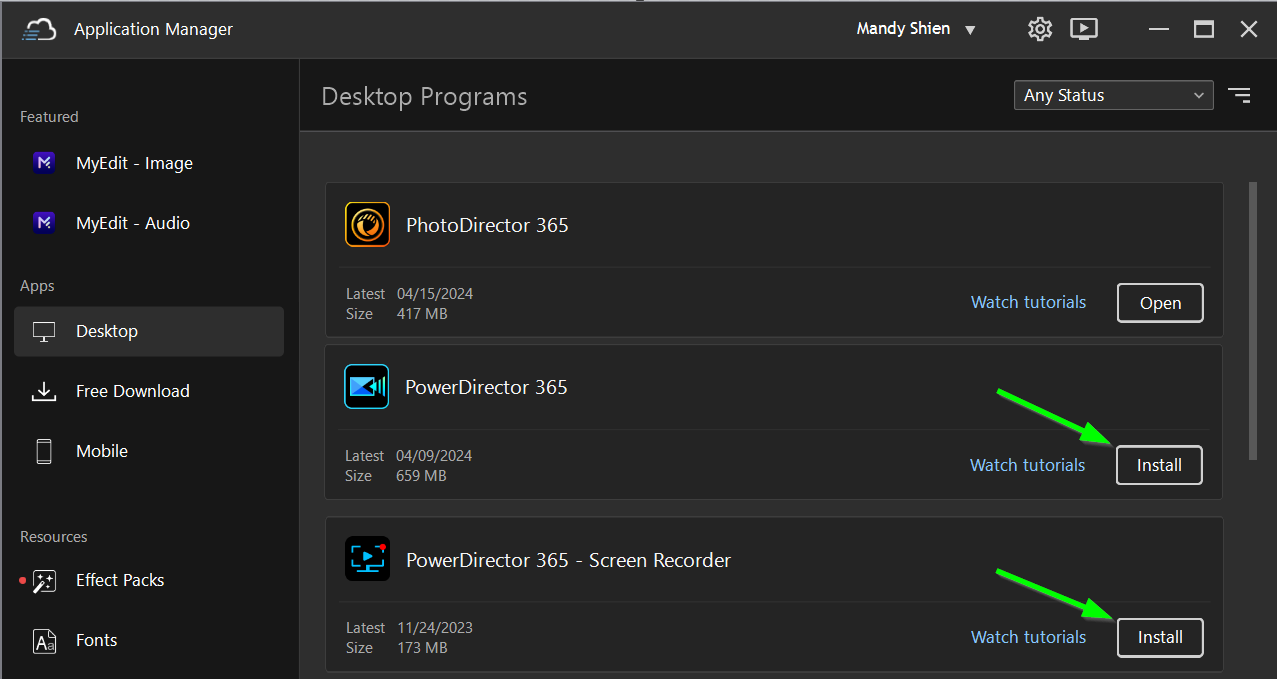
5. Find your paid subscription software in Desktop Programs. Click Install to download and install your subscription product.

[Purchased from other websites/ stores]
Upon purchase, you will receive one product key per software license from the seller. You can redeem the subscription using the product key with your CyberLink member account. If you don’t yet have a CyberLink member account, click here to sign up for a new member account.
Steps:
- Click here to download and install CyberLink Application Manager.
- Open CyberLink Application Manager and then sign in with your CyberLink member account.
3. Click the triangle symbol next to your account name and then click Redeem from the drop-down menu.

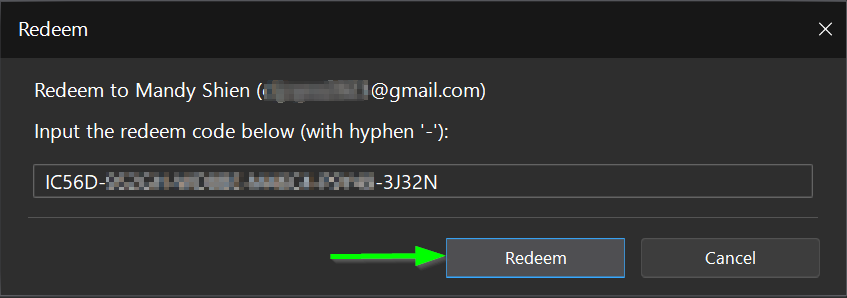
4. Enter your product key in the field and then click the Redeem button to activate your subscription product.
5. After that, you can find the subscription in Desktop Programs. Click Install to download and install your subscription product.
Note:
Each product key unlocks a one year of subscription. After one year, your subscription will expire. If you would like to continue using the product, a new product key is required for each additional year, or you can simply extend your subscription by placing a new order on our online store.


