





How do I use the chroma key (green screen) feature in CyberLink PowerDirector Mobile?
The chroma key feature can be applied to media by doing this:
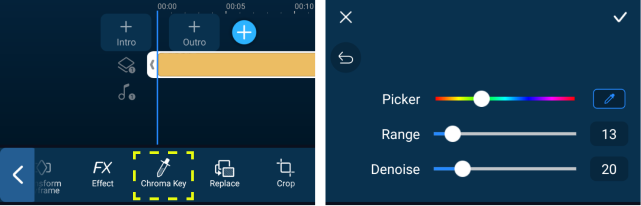
When editing in PowerDirector Android:
- Choose a video* or photo on the overlay track.
- Access the chroma key tool from the pop-up toolbar.
- Inside the chroma key room, drag the color picker onto the video/image in the preview window to select a color.
- Release the color picker to remove the selected color from the screen.
- You can tap the chroma key tool again to select a different color or adjust the range and apply the denoise effect.
When editing in PowerDirector iOS:
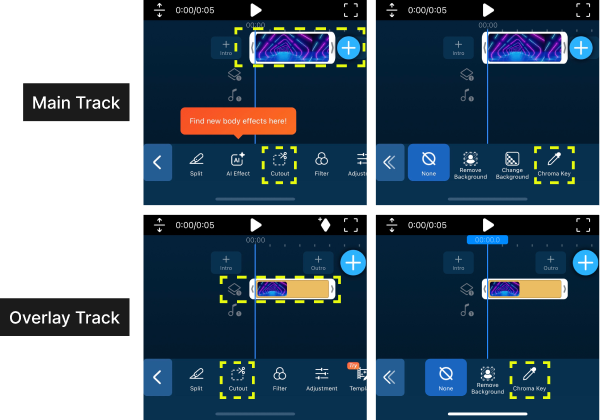
- Tap the media on the main or overlay track.
- Access the "Cutout" tool from the toolbar.
- In the "Cutout" menu, you can find "Chroma Key" on the toolbar.
- Tap the chroma key tool and then drag the color picker onto the video/image in the preview window to select a color.
- Release the color picker to remove the selected color from the screen.
- You can tap the chroma key tool again to select a different color or adjust the range and apply the denoise effect.
|
Note: * Adding videos to the overlay tracks needs to be supported by the mobile device's system on chips (SoC). Please refer to this FAQ: Which mobile device system on chips (SoC) supports video overlay editing and producing in CyberLink PowerDirector Mobile Android? |


