





How do I check my product version number and other details?
A common way to find the versioning information of CyberLink software is to check the About dialog of each product.
You may easily open the About dialog by clicking the product logo when using CyberLink software.
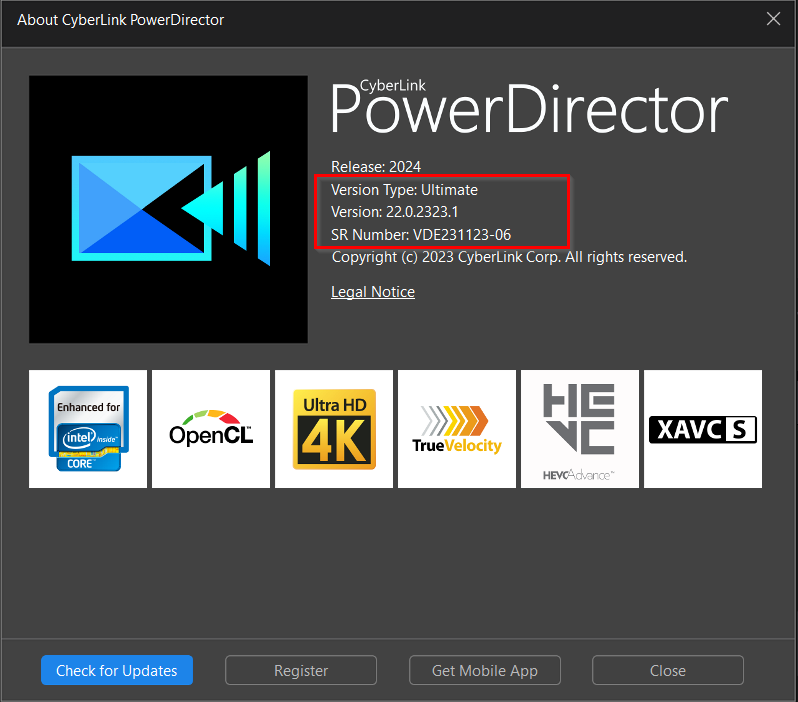
Product version:
The version and build number generally looks like "22.0.2323". The number "22" is the major version number; "0" is the secondary version number, and "2323" stands for the build number. The build number is useful for determining if it is necessary to install an update.
For Subscription products, you can check and download updates via CyberLink Application Manager or update the software version via update notification dialog that pops up on the launch.
For Perpetual products, you can go to the Software Updates page or click the Check for Updates button on the About dialog to get the latest update for your product version.
Version type:
CyberLink software usually comes in several version types that contain different features , such as Ultimate edition, Ultra edition, etc. You may refer to the Product Comparison page to find out which version type best suits your needs.
SR number:
The SR number is an ID for CyberLink to track program builds internally. With this number, we can easily trace back the details of the software, and the information can speed up the technical support process.


