





How do I change the file associations for media files opened in Windows?
CyberLink PowerDVD is a powerful program that can play many different media files and act as your default media playback software. If you would like to play the media files with PowerDVD, follow the steps below to change the default playback software in Windows 7, Windows10, and Windows 11 .
For Windows 10, 11:
- Right click on the Windows/Start button, select Settings > Apps > Default apps.
- Select PowerDVD in the application list.
- Choose PowerDVD as the default for associated file types manually.
- Click Set Default
1. Open Default Programs
For Windows 7:
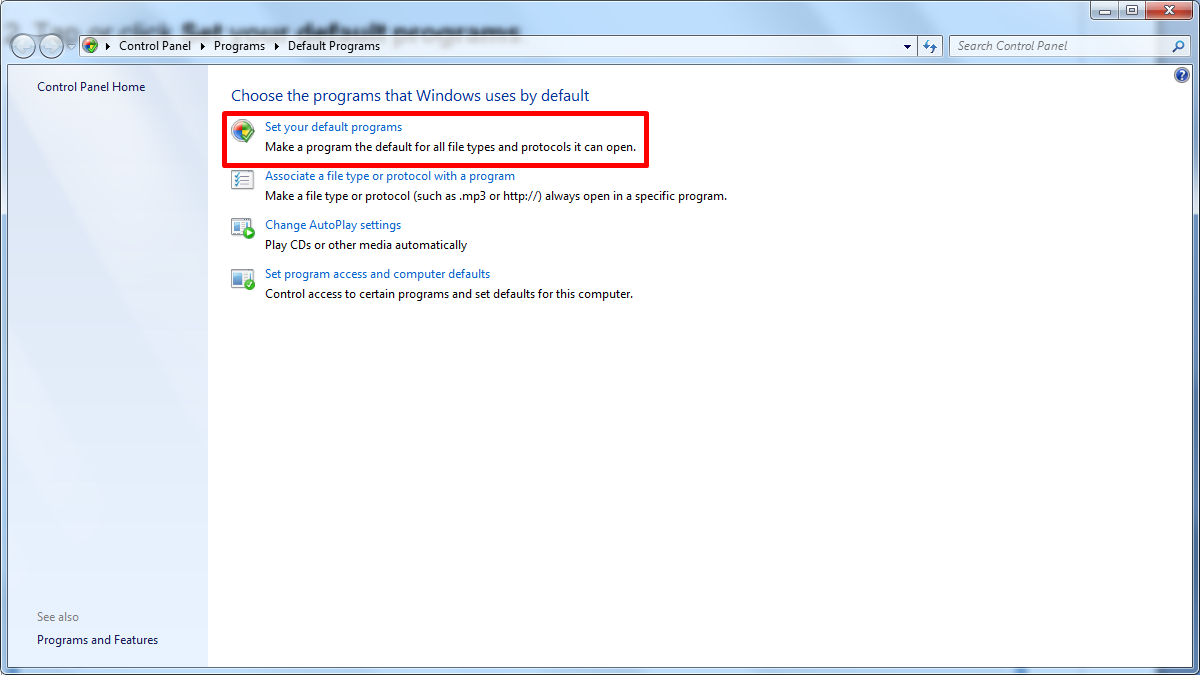
- Click the Start button, and then click Default Programs.
- Tap or click Set your default programs.
- Choose PowerDVD in the left list to set it as the default.
- Set the program as the default for all associated file types, or manually choose each file type if required.
- Click OK.


