





How do I cast media to my streaming device (Chromecast/Apple TV/Fire TV/Roku) in CyberLink PowerDVD (version 18 or above)?
CyberLink PowerDVD (version 18 or above) supports the casting of media to a streaming device, such as Chromecast, Apple TV, Fire TV, and Roku. To cast media to your streaming device, do this:
- Make sure the streaming device and the PC are connected to the same Wi-Fi (wireless) or LAN network.
- Browse to the media files imported into the PowerDVD Media Library or browse to the media file location at My Computer tab in PowerDVD.
- Right-click on the media file to open playback menu and then select Play To to display a list of connected devices.
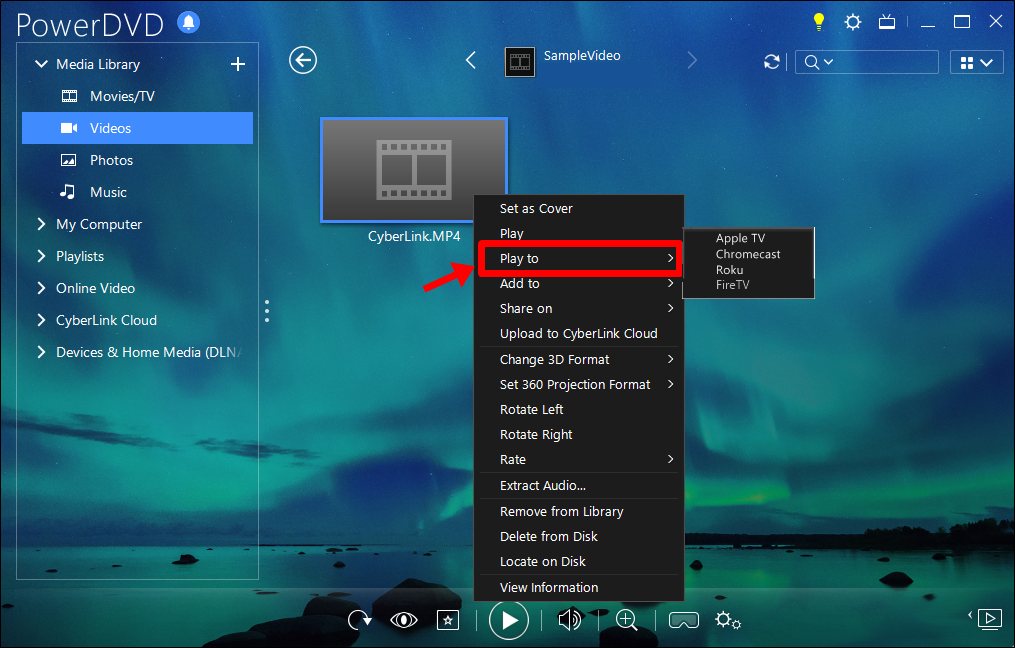
- Select the streaming device in the list to cast media playback.
Note:
- To cast media to a Roku streaming device, you must first install the PowerDVD Casting channel from the Roku store. You will be asked to do this in step 4 if you haven't done so beforehand.
- To cast media to a Fire TV streaming device, you must first install the PowerDVD Casting App on your Fire TV at Fire TV app store. You will be asked to do this in step 4 if you haven't done so beforehand.
- Ultra HD Blu-ray, Blu-ray Discs, DVDs, movie folders, and ISO files cannot be cast to streaming devices.


