





How to use Automated Dialogue Alignment feature in AudioDirector 6?
To use Automated Dialogue Alignment to dub the audio in a video clip, do this:
- Click on the Mix button to enter the Mix room.
- Add the video clip that contains the dialogue you want to dub on the first track in the timeline.
- Drag the timeline slider to the beginning of the dialogue and then click the
 button to split the audio in the video clip.
 - Drag the timeline slider to the end of the dialogue, and then click again.
- Add the new dialogue audio clip on the second track in the timeline, underneath the split clip.
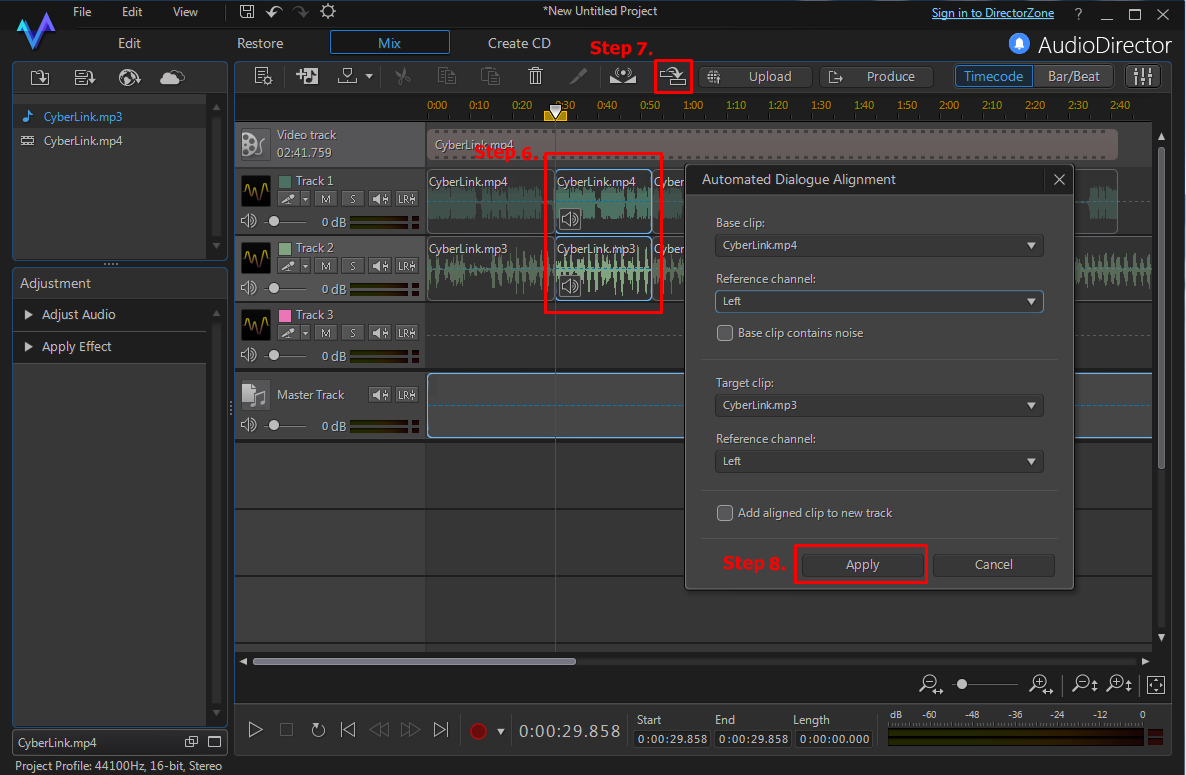
- Hold down the Ctrl key on your keyboard and select both the split video clip and the new dialogue audio clip.
- Click the
 button to enter the Automated Dialogue Alignment window
 - Click the Apply button in the Automated Dialogue Alignment window.
Note:
For more program usability and feature related information, please visit the video tutorials page on DirectorZone.


