





How do I automatically organize photos using PhotoDirector?
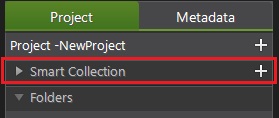
CyberLink PhotoDirector automatically organizes your photos in a Smart Collection for easy browsing. Every time you import, rate, or reject photos, CyberLink PhotoDirector updates the Smart Collection.
- All Photos: select to view all the photos you have imported into the current project database.
- Latest Imports: select to view the photos that were most recently imported into the library.
- 1 Star or Better: select to view photos you have rated 1 or more stars.
- 5 Stars: select to view all the photos you have rated 5 stars.
- Rejected: select to view all the rejected photos.
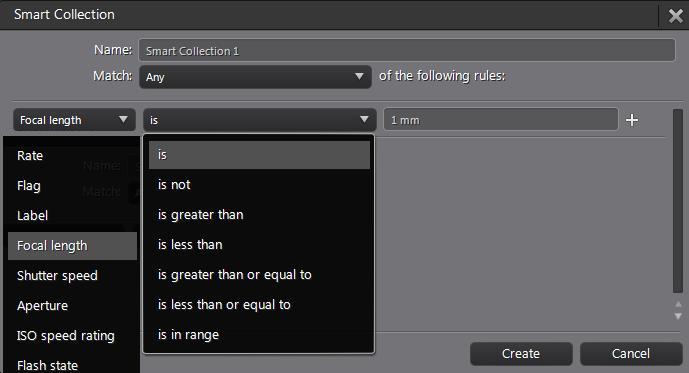
You may also create a new smart collection by clicking “+”.
Related Article:
-How do I adjust a photo but won't affect the source file?
-For further detail instructions, please click F1 to open PhotoDirector Help document. You can also refer to CyberLink PhotoDirector user’s guide.


