





Why can’t I hear the surround sound effect when using Surround Sound Panner in CyberLink AudioDirector 4?
Cause
This may due to the following reason:
- Surround Sound Panner doesn’t support the mono audio profile, since its purpose is to manipulate audio that across multiple channels to achieve a surround sound effect.
- Your speakers aren’t set up correctly for Stereo / 5.1ch / 7.1ch surround sound in Windows.
Solution
If you want to apply 5.1ch / 7.1ch for the Surround Sound Panner effect in CyberLink AudioDirector, ensure you set up the following:
I. Configure audio profile settings in AudioDirector:
- Go to the Mix room
- Click on the Configure audio profile settings in Mix room
 button
 - Select one of the audio channels settings below from the drop-down list.
Note: The Surround Sound Panner effect is only available if the mix’s audio profile channel setting is set to Stereo, 5.1 Channels or 7.1 Channels.
- Stereo
- 5.1 Channels
- 7.1 Channels
- Click OK.
II. Set up surround sound in Windows:
If you want to hear the audio effect correctly, you must set up your corresponding speaker surround sound in Windows. To do this:
- Click on Start > Control Panel > Hardware and Sound > Sound.
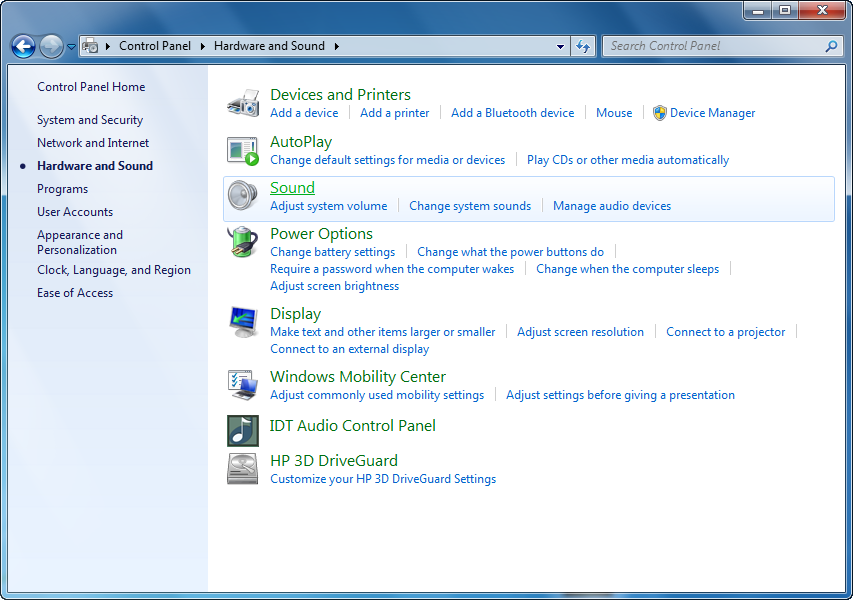
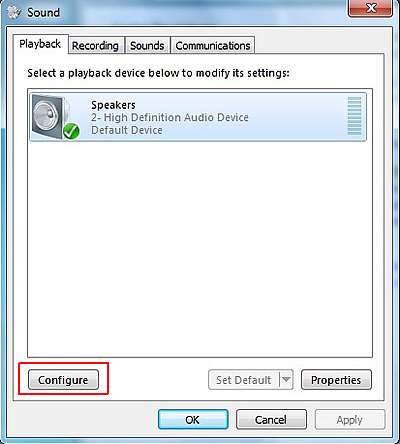
- In the Sound window, select your the sound device that you are about to configure and then click on Set Default.
- Then click the Configure button.
- In Speaker Setup window, select the configuration you want in the Audio Channels box.
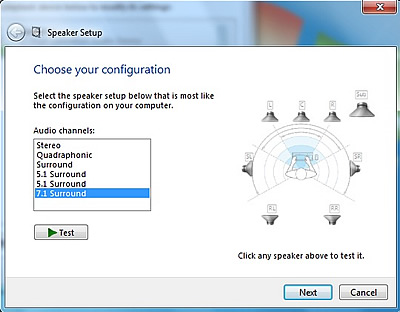
Note: If there are Stereo, 5.1 and 7.1 options in Audio channels, it means your computer supports Stereo, 5.1 Surround and 7.1 Surround. Your computer may support more or fewer depending on your hardware.
- Select the configuration you want in the Audio Channels box.
- Make sure your speakers are turned on and the volume is turned up enough so you can hear them. Click the Test button and listen as Windows tests each of the speakers in your setup.
- Ensure the testing result is fine then you can click the Next button. Finally, click on the Finish button to complete the surround sound setting in Windows built-in sound utility.
Note: The set up process or the options might be slightly different according to Windows OS or sound card hardware environment setting. If you are not able to follow the steps above, please consult with your computer manufacturer or sound card vendor for how to set up speaker surround sound in Windows.


