





How do I use the AI Video Enhancement feature to upscale video resolution?
In the new version of PowerDirector 365 (released in Oct. 2024), the AI Video Enhancement feature was added to help you automatically increase your video resolution for enhanced quality.
To use the feature, do this:
- Add a video clip1 to the timeline.
- Double click on the video clip, and then click the AI Video Enhancement option in the Edit > Video > Tools panel.
- Trim the video length2 (if required).
- Select the Lighting3, Denoise3, Upscaler, and Frame Interpolation3 options, as required. The credit consumption differs depending on the options you select.
- Click Enhance, and the corresponding credits will be deducted based on the video length.
- PowerDirector will generate the enhanced video. The longer the video length, the longer it will take to generate.
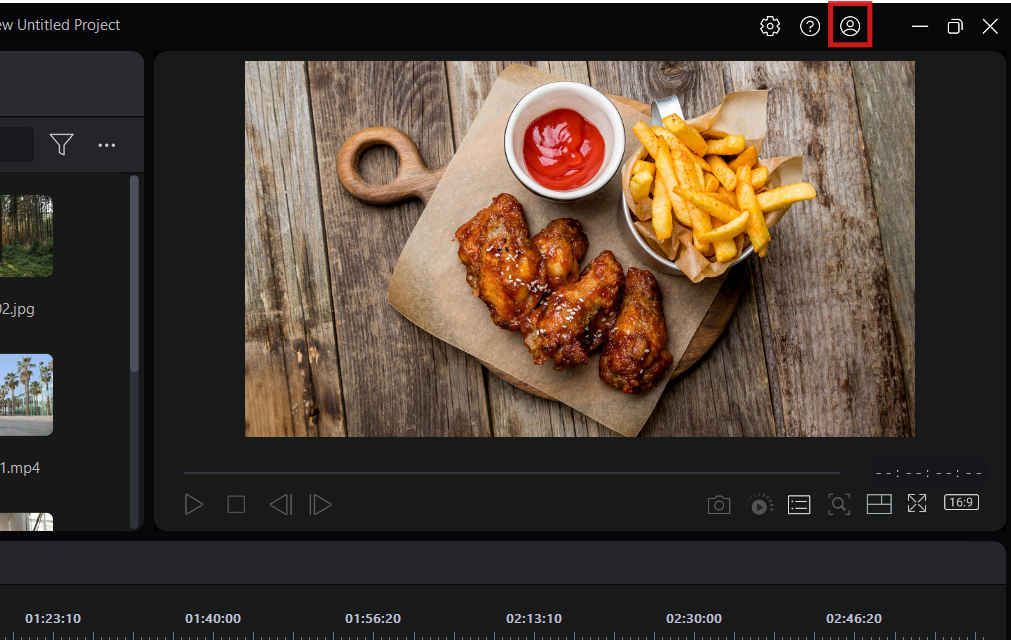
- After the generation process is complete, you can view the enhanced video by clicking the
 button > My GenAI Creations4 > AI Video Enhancement page and choose to either add it to the timeline or export it directly.
The output file format is H.264 8-bit 4:2:0 MP4, which differs from the original source format.
Note:
- AI Video Enhancement feature can only be applied if the imported video's resolution is 1920 pixels or lower (e.g., 1920x1080).
- The minimum video duration is 5 seconds, while the maximum is 3 minutes per generation. If your video exceeds this limit, you are required to trim it first.
- Frame Interpolation generates and inserts additional frames to make a video smoother than the source video by interpolating more frames into the video. Lighting, Denoise, and Frame Interpolation options can only be enabled if the imported video's frame rate is 30 fps or lower.
- The generated videos will be saved in My GenAI Creations on CyberLink's server for 30 days. After 30 days, the generated videos will be deleted from server. If you want to reuse the generated videos, we suggest you export/produce them to your personal storage before they expire.
- AI Video Enhancement is a credit-based feature. It consumes credits for video generation. If your current credits are insufficient, you can click the Get Credits button in the feature window to purchase additional credits.
Related Articles:
- What are credits?
- What can I do with the credits on PowerDirector?
- I consumed credits for AI features, but I am not satisfied with the results.


