





How to I use the AI Style Transfer feature in CyberLink PhotoDirector 10?
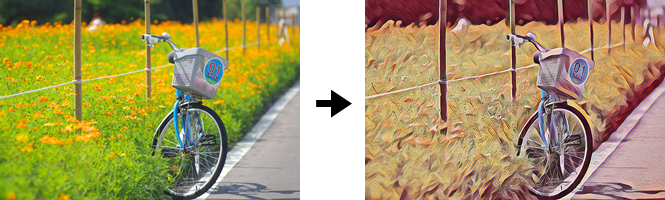
CyberLink PhotoDirector 10 now supports the AI Style Transfer feature that helps you convert your photo into a painting within a few clicks.
To use the AI Style Transfer feature, do this:
- Select a photo in PhotoDirector's library, and then click Edit module.
- Select AI Style Transfer from the left edit panel.
- Select a painting style from the template list. Note that it may take some time to process and then apply the painting style on the photo.
- Click the option Apply Original Color to retain original colors on the photo when applying the AI style, or adjust the painting style strength by dragging the strength slider (from level 0 to 100).
- Use the eraser brush to brush the areas that you would like to keep as they are in the original photo.
- Click Save to to export the style transfer result as a new photo.
For instance, a scenery photo that is applied with Savanah painting AI style:
To learn more about the AI Style Transfer feature, please visit the video tutorials page on DirectorZone.


