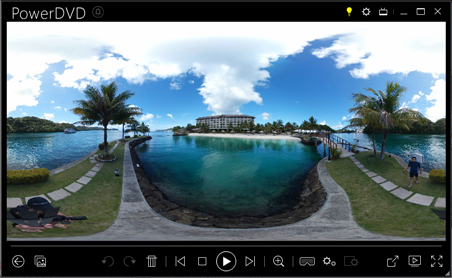
How do I use the 360° View Mode for 360° video/photo playback in CyberLink PowerDVD 18 or later versions?
To use the 360° View Mode, do this:
- Start playing a 360° video, or open a 360° photo.
- Right-click on the
 button and then select one of the following 360° View Modes:
- Default Single View: select this option to view the 360° environment from the center of a sphere.
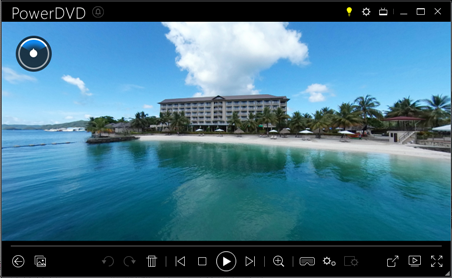
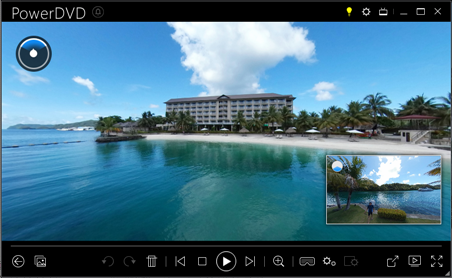
- Front-and-Rear: select this option to view your 360 media file from the center of a sphere, with a small preview window that shows the view directly behind you. You can click on the small preview window to quickly jump to that view.
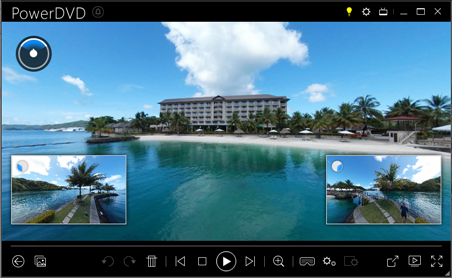
- Tri-View: select this option to view your 360 media file from the center of a sphere, with two small preview windows that show the view to your left and right. You can click on the preview windows to quickly jump to that view.
- Panoramic View: select this option to view the entire 360 media file at once within the preview window in a panoramic view.